Configuration failed?
Follow these steps to get your Smart Oil Gauge connected:
- Start by checking that the batteries are seated properly. Slide open the battery box, take the batteries out, put them back in, and turn the device back on. You should briefly see a red light illuminate deep down inside of the device.
- Verify that the WiFi password will be accepted on your phone. Go to Settings>>WiFi on your phone, then choose the network you’re connected to. Click on the network and hit ‘Forget this network’. Then, rejoin the network and type in the password. If it rejoins successfully, go to step 3.
- Follow the instructions in the app to add a sensor to your account. Type in the password for your WiFi network when prompted, and hit continue. Press the button twice just like the Mickey Mouse hand. Look for the red light – it should come on once after the first button press, then two more times after the second button press. If it does, press continue. If not, turn the device off then on, wait 5 seconds, and try pressing the button again like the Mickey Mouse hand, then hit continue. If configuration still fails, please follow the alternate setup method at the bottom of this page.
Can't see your WiFi Network listed in the app?
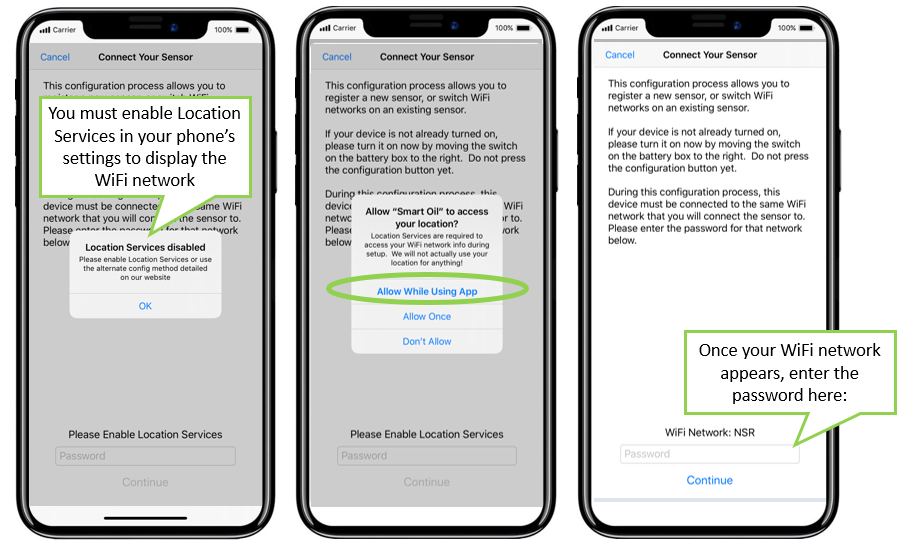
When configuring the Smart Oil Gauge onto your home's WiFi network, the app will display the WiFi network that your device is connected to in the app. You must enable location services for this WiFi network to appear. This is an Android and iOS requirement - we don't actually use your location other than to display the WiFi network.
My phone says 'Must Connect to 2.4 GHz network'
If your router broadcasts two frequencies (2.4 GHz and 5 GHz), you may need to isolate the 2.4 GHz network to connect the Smart Oil Gauge. GOOD NEWS: you should not need to make any changes to your router. Just follow one of these two steps:
- If your router broadcasts two frequencies with different names (For example, Home-2.4 and Home-5G), just simply disconnect from Home-5G and connect just to Home-2.4.
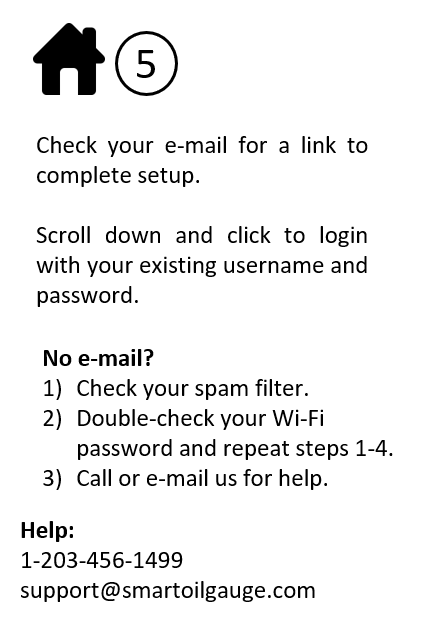
- If your router only broadcasts one network name, you may need to use the 'Alternate Setup Method'. The alternate setup method isolates the 2.4 GHz band and will allow you to connect the Smart Oil Gauge.
Alternate Setup Process
Follow this process if you are unable to connect your Smart Oil Gauge using the in-app setup method. This is sometimes required with Orbi Mesh Networks, Eeros Routers, or other mesh network systems.
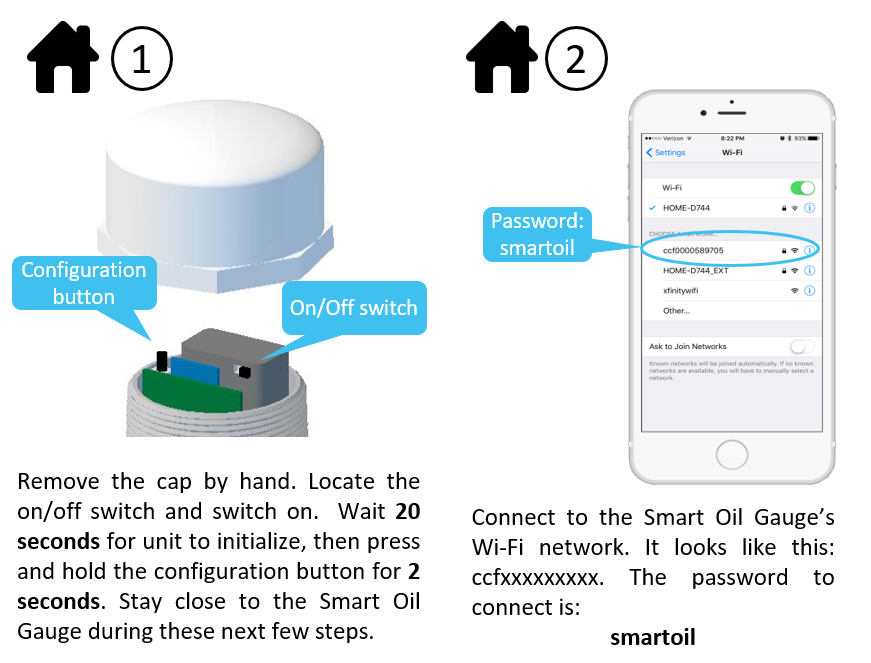
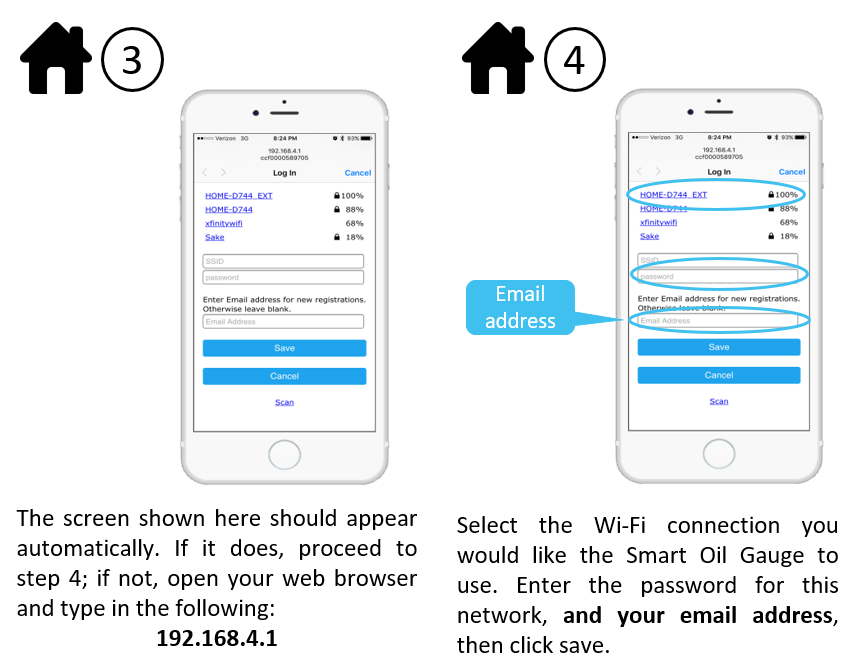
HAVING TROUBLE SEE THE CCF***** WiFi network? If so, you may be pressing the button too long. On new units (manufactured after March, 2020), the red light will blink once every second when the device is broadcasting this WiFi network. If it is blinking three times every second, then you have held the button down too long and it is going into WPS mode. Turn the unit off and try again. To get the device to broadcast WiFi, you will need to hold the button down for no more than two seconds. We recommend saying "One-one-thousand-two" as that seems to be just the right amount of time. Holding it down for the traditional "One-one-thousand, two-one-thousand" is too long to get the device into this mode. Once the light is flashing once per second, it should be broadcasting the network.
On older units, the red light should flash twice while holding the button down to indicate it is in WiFi mode. If you press the button for another two seconds while it is in WiFi mode, the light will not come on at all. This is a good indication that the device is broadcasting its WiFi network and you should be able to find it on your smart phone or tablet.